
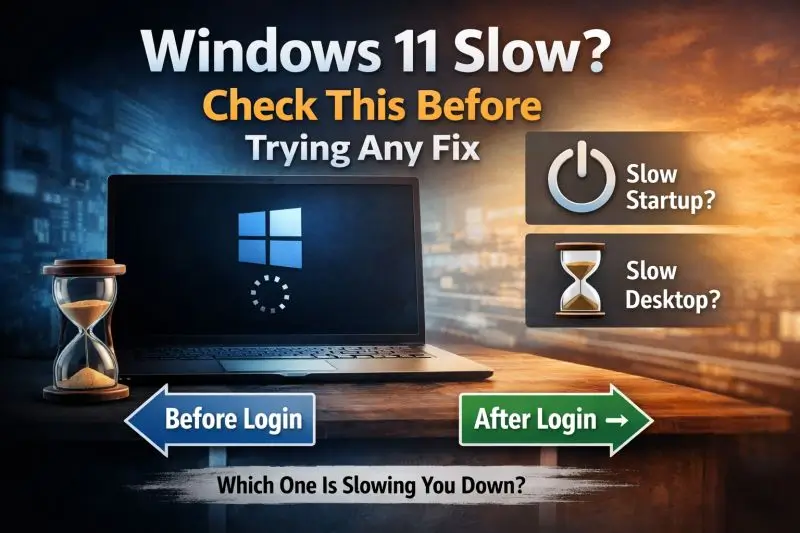
If your Windows 11 PC feels slow, the first thing to figure out is when it’s slow.
Some computers take forever to boot, but feel fine once you’re at the desktop.
Others boot quickly, then crawl once everything loads.
Those are two different problems. Treating them the same usually leads to wasted time and risky tweaks you don’t need.
This guide helps you tell the difference clearly and safely, so you fix the right thing.
If you’re not sure where your slowdown fits yet, start with the full diagnostic roadmap in our Windows 11 Running Slow – Complete Troubleshooting Guide, which walks through the entire system step by step.
What “Slow Startup” Actually Means
A slow startup means Windows itself takes a long time to reach the desktop.
Common signs:
- You see the Windows logo spinning for a long time
- The login screen appears late
- The screen stays black longer than usual
- The system feels busy before you even sign in
Once the desktop finally appears, things may feel mostly normal.
In real troubleshooting, this usually points to Windows loading drivers, updates, or core system services—not your everyday apps.
What “Slow Desktop” Means (and Why It Feels Worse)
A slow desktop means Windows loads quickly, but becomes sluggish after login.
Common signs:
- Desktop appears fast, but apps open slowly
- Mouse stutters for the first few minutes
- Disk or CPU usage spikes after login
- Fans spin up even when you’re not doing much
This often happens because startup apps and background processes all pile on at once.
In practice, this is where many people assume Windows is “broken,” even though the system is usually just overloaded temporarily.
Reassurance: this kind of slowdown is common and usually fixable without risky changes.
Simple Test: Which One Do You Have?
Do this once. No tools required.
- Restart your PC
- Time how long it takes to reach the login screen
- Time how long it takes to feel usable after logging in
- If the delay is before login → slow startup
- If the delay is after login → slow desktop
- If both are slow → you likely have a combined issue
If your results aren’t perfectly clear, that’s normal. You’re not doing anything wrong—this is just about spotting the bigger delay.
In that case, follow the structured order outlined in the Windows 11 Running Slow – Complete Troubleshooting Guide so you don’t fix things out of sequence.
Why Slow Startup Happens (High Level)
Slow startup is usually caused by:
- Windows updates finishing setup
- Driver initialization (especially storage or graphics)
- Corrupted or stuck system services
- Firmware or hardware delays on older systems
What to avoid:
Do not start disabling random Windows services or editing the registry. This often hides the real problem and can make startup slower or unstable later.
Startup issues should be diagnosed patiently, not “cleaned up” aggressively.
Why Slow Desktop Happens (High Level)
Slow desktop performance is commonly caused by:
- Too many startup apps launching together
- Background sync tools checking for updates
- Antivirus scans starting at login
- Sustained disk usage on older HDD-based systems
This is where safe, reversible fixes actually make a noticeable difference.
Fix Path for Slow Desktop (Safe Order)
Step 1: Check Task Manager (Don’t Change Anything Yet)
- Press Ctrl + Shift + Esc
- Watch CPU, Memory, and Disk usage for 1–2 minutes
You’re not fixing anything yet—just observing.
Why this matters:
It shows what is slowing things down instead of forcing guesses.
In many cases, one unexpected app or background task is doing most of the work.
Step 2: Review Startup Apps (Carefully)
- In Task Manager → Startup tab
- Look for apps marked High impact
You can usually disable:
- Chat apps
- Game launchers
- Optional cloud sync tools (temporarily)
Guardrail:
Do not disable everything at once. Turning off too many items makes it harder to tell what helped and can break features you actually rely on.
What to expect:
The next boot should feel calmer and more responsive—not instant, but smoother.
Step 3: Give It 2–3 Minutes Before Judging
After login, wait a few minutes.
Windows often finishes background tasks shortly after startup. Restarting repeatedly or interrupting this process can make things feel worse, not better.
If / then check:
If disk usage stays near 100% for more than 5–10 minutes every time you boot, then the issue is persistent—not just normal startup activity.
When the Problem Is Actually Slow Startup
If Windows itself takes a long time before you can log in:
- Check whether updates installed recently
- Restart once more and let it finish settling
- Avoid fast-boot tweaks or BIOS changes unless you understand why you’re doing them
Guardrail:
Avoid third-party “boot optimizer” or cleanup tools. These often disable essential processes and create harder-to-fix problems later.
Slow startup usually needs targeted fixes, not broad system changes.
Pro Tip (Worth Knowing)
A PC can feel slow even when nothing is truly broken.
Startup timing often changes after updates, new software installs, or as storage ages. The goal isn’t instant speed—it’s predictable, stable behavior.
If you want the full step-by-step system that covers startup, desktop, disk usage, and deeper checks, follow the Windows 11 Running Slow – Complete Troubleshooting Guide.
Practical Wrap-Up
If Windows is slow before login, focus on system-level causes.
If it’s slow after login, focus on startup load and background activity.
Don’t rush changes.
Don’t disable things blindly.
Figure out when the slowdown happens first. Everything else becomes clearer after that.
