
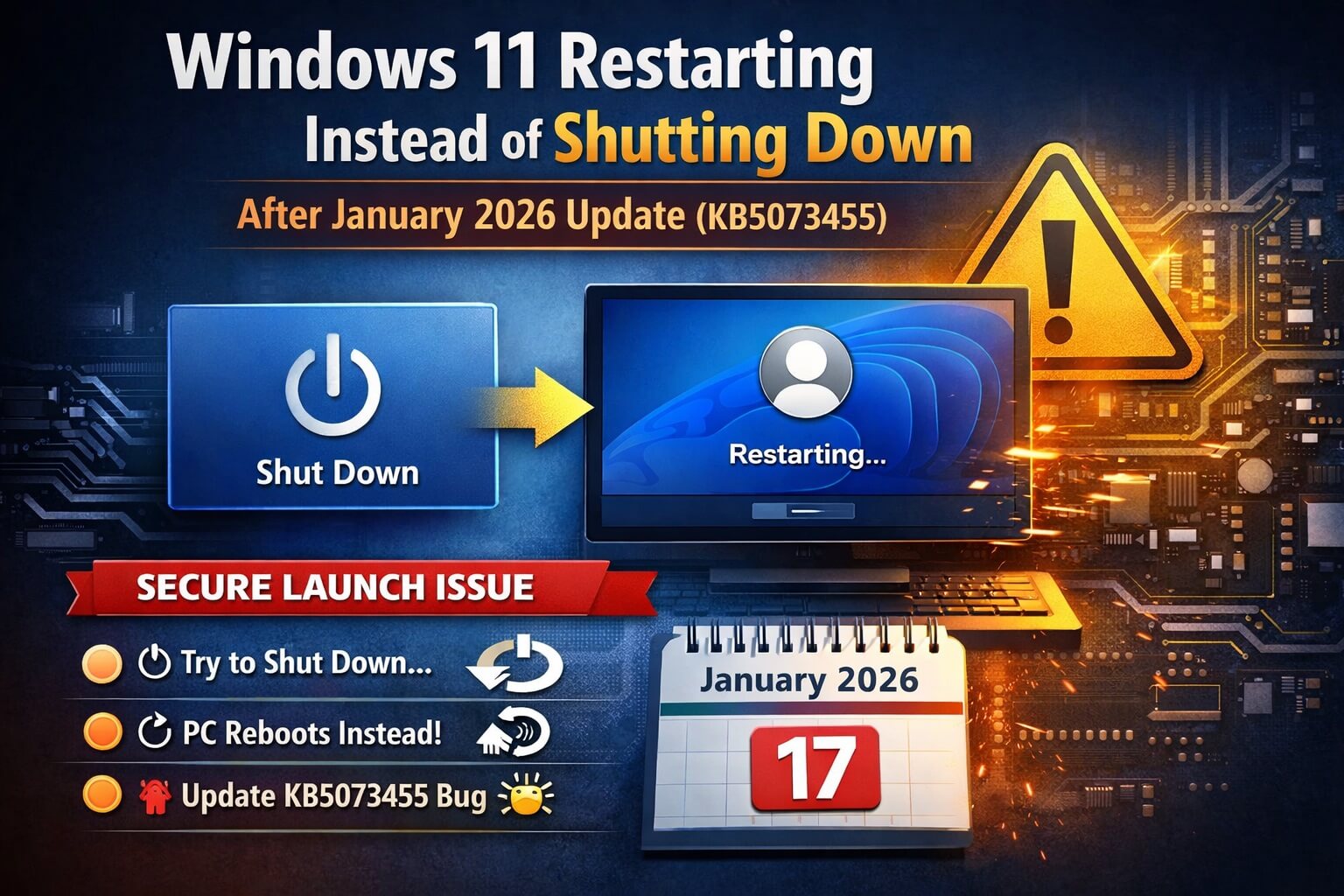
Nothing’s more frustrating than hitting Shut down or putting your PC to sleep, only for it to restart instead. You expect it to power off. Instead, you come back and see the login screen glowing at you. If this started happening after a recent Windows update, you’re not imagining it.
The issue comes from KB5073455, the January 2026 update for Windows 11 version 23H2. It mainly affects systems with Secure Launch enabled. When you try to shut down or hibernate, Windows ignores the request and reboots.
This isn’t failing hardware or a random crash. It’s a known update bug that conflicts with a specific Windows security feature.
If your PC is stuck restarting endlessly after an update, that’s a different issue.
See our guide on fixing a Windows 11 restart loop after updates.
If that is not the case continue..
Microsoft has announced the official fix for this issue.
Read my updated blog post to apply the fix: Official Fix for Windows Restart Issue Caused by KB5073455
What’s Happening with Windows Update KB5073455
If you’ve already tried the basics—restarting, updating drivers, running troubleshooters—this problem won’t fix itself. KB5073455 introduced a glitch that affects Windows 11 systems where Secure Launch is turned on.
Instead of completing a shutdown or entering hibernation, Windows restarts every time. There’s no clear error message explaining why.
Secure Launch is meant to protect the boot process, but in this case it’s causing the failure. The behavior is consistent, not random. If you rely on hibernate to keep work open, this bug can cause you to lose progress when the system restarts unexpectedly.
- Who it affects: Windows 11 23H2 with Secure Launch enabled.
- What happens: When you try to shut down or hibernate, the system restarts instead.
- Why it happens: A glitch in the update conflicts with the Secure Launch security layer.
- Real-world impact: If you rely on hibernate to preserve work, unexpected reboots can cause lost progress.
How to Confirm KB5073455 Is Causing the Restart Issue
Since basic fixes didn’t help, the next step is confirming this is the same KB5073455 issue.
For extra confirmation, open Event Viewer and check System logs. You’ll usually see shutdown attempts followed immediately by reboot events. It won’t mention KB5073455 directly, but the timing makes it clear.
Check Secure Launch
- Go to Windows Security → Device Security → Core Isolation Details.
- If Secure Launch is on, your system is likely affected.
You can also test it safely
- Close all apps.
- Try shutting down or hibernating.
- If your PC restarts immediately, the bug is active.
- ⚠️ Don’t test this with unsaved work.
For extra confirmationl: Check Event Viewer
- Open Event Viewer → System logs.
- Look for shutdown events immediately followed by unexpected reboots.
- It won’t mention KB5073455 directly, but the timing makes it clear..
Temporary Fix: Disable Secure Launch in Windows 11
Once you’ve confirmed the cause, the fastest way to stop Windows 11 from restarting is to disable Secure Launch.
You can do this from Windows or through BIOS.
- Through Windows Security
- Open Device Security → Core Isolation Details.
- Toggle Secure Launch off.
- Restart once for the change to apply.
- Through BIOS
- Restart your PC and enter setup (usually Del or F2).
- Look for Secure Launch or Virtualization-based Security.
- Disable it, save, and exit.
Important: Disabling Secure Launch lowers one layer of protection against low-level attacks. For most home users, the risk is small, but re-enable it once a fix is released.
If shutdown issues started after a recent update and your PC also feels slower, performance-related fixes may help. See:Windows 11 Slow After Update
What Microsoft Has Said About KB5073455 (and Why Waiting Isn’t Practical)
Microsoft has acknowledged that KB5073455 can cause unexpected restart behavior on Windows 11 systems with Secure Launch enabled. So far, the response has been limited to investigating the issue.
There’s no immediate fix available. Even when Microsoft releases a patch, it won’t reach every system at once.
If your PC keeps restarting instead of shutting down, waiting isn’t realistic. Applying a workaround now is more reliable than hoping the next update arrives before it disrupts your workflow again.
How to Stay Secure Until Microsoft Releases a Fix
If you’ve disabled Secure Launch or are using workarounds, a few precautions help.
Keep your antivirus and firewall enabled. Avoid risky downloads or unknown software while this security feature is turned off.
Try to shut down or hibernate only when you’re not in the middle of important work. Even with workarounds, an unexpected reboot can interrupt long-running tasks.
Keep an eye on Windows Update. Once Microsoft releases a proper fix for KB5073455, you’ll want to install it and re-enable Secure Launch so you can regain full protection without the restart problem.
Frequently Asked Questions
Why does Windows 11 restart instead of shutting down after the January 2026 update?
The January 2026 update KB5073455 causes a conflict on Windows 11 version 23H2 systems where Secure Launch is enabled. Instead of shutting down or hibernating, Windows restarts.
Which Windows 11 versions are affected by KB5073455?
This issue only affects Windows 11 version 23H2 systems with Secure Launch enabled. Systems without Secure Launch turned on are not affected.
How can I confirm that KB5073455 is causing the restart issue?
If your PC restarts immediately when you try to shut down or hibernate and Secure Launch is enabled, the issue is likely KB5073455. Event Viewer usually shows shutdown attempts followed by unexpected restarts.
Is this a hardware problem or a Windows bug?
This is a Windows update bug, not a hardware issue. The behavior is consistent and tied directly to the KB5073455 update.
Is it safe to disable Secure Launch as a workaround?
Disabling Secure Launch reduces protection against certain low-level threats. For most home users, the risk is small, but it’s recommended to re-enable it once Microsoft releases a fix.
Has Microsoft released a fix for the KB5073455 restart problem?
Microsoft has acknowledged the issue but has not released an immediate fix. A future cumulative update is expected to resolve it.
