
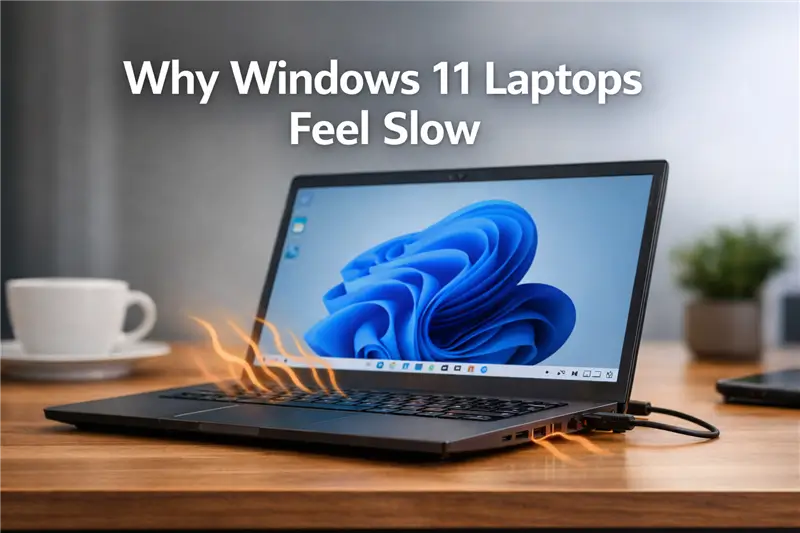
If your Windows 11 laptop feels slow even though it’s not very old, you’re not imagining it.
Apps take longer to open. Tabs lag. The fan ramps up, then everything suddenly feels sluggish.
This isn’t always a “Windows” problem. Most of the time, it’s your laptop protecting itself.
This behavior affects most Windows 11 laptops regardless of brand and usually isn’t tied to a specific update or hardware defect.
This slowdown is common, fixable, and usually not a sign of damage.
What’s actually happening (plain language)
Modern laptops are designed to be thin, quiet, and cool.
To make that possible, Windows and the hardware constantly limit performance based on heat and power.
When the laptop gets too warm or doesn’t have enough power available, it slows itself down on purpose. This is called throttling.
It’s not a bug.
It’s a safety feature.
This happens even to careful users and new laptops.
I’ve noticed this most often on laptops that feel quick right after a restart, then gradually slow down after 15–30 minutes of normal use.
Why this happens on Windows 11 laptops
At a high level, three things usually work together to cause the slowdown:
- Heat buildup
- Thin laptops trap heat easily.
- Dust, blocked vents, or using the laptop on a bed or couch makes it worse.
- Once the CPU gets hot, Windows reduces speed to prevent damage.
- Power limits
- On battery, Windows intentionally lowers performance to save power.
- Some laptops keep these limits even when plugged in.
- Low-wattage chargers can quietly cap performance.
- Background activity
- Windows updates, indexing, antivirus scans, or browser tabs add steady load.
- Heat builds slowly, then performance drops.
This can feel random if you don’t know what to look for.
It usually isn’t.
First: quick checks before changing anything
These steps don’t change system settings or affect your files. They just remove easy performance limits.
Before you do anything else:
- Save your work.
- Close apps you don’t need right now.
- Plug the laptop into its original charger if possible.
- Place it on a hard, flat surface so air can flow underneath.
If the laptop suddenly feels a bit faster after this, you’re already on the right track.
Quick direction check:
- If your laptop feels slow mainly on battery, focus on power settings and charging first.
- If it feels fast after a restart but slows down after some time, heat is likely the main limit.
Fix 1: Check your Power Mode (most common fix)
Changing power mode here is safe and fully reversible; you can switch it back at any time.
Why this helps:
Windows 11 limits CPU speed based on your power mode. Many laptops default to a balanced or power-saving mode even when plugged in.
What to do:
- Click Start → Settings
- Go to System → Power & battery
- Find Power mode
- Set it to Best performance
What to expect:
- Apps should feel more responsive.
- Fans may run slightly louder. That’s normal.
What to avoid:
Don’t leave this on Best performance if your laptop already runs very hot. Sustained heat will undo any speed gains.
If performance feels noticeably better here, you can stop and use the laptop normally.
Fix 2: Make sure Windows knows you’re plugged in
Why this helps:
Some laptops don’t fully switch to higher performance unless they detect enough power.
What to check:
- Use the original charger if you have it.
- Avoid low-power USB-C chargers unless they match your laptop’s wattage.
- Look for a charging message that says “Plugged in,” not “Slow charging.”
If / then check:
If performance improves immediately after switching to a higher-watt charger, power limits were the main cause.
At this point, many laptops already feel more stable. Partial improvement is a good sign.
Fix 3: Reduce heat buildup (this matters more than people expect)
Why this helps:
Once the CPU crosses a temperature limit, Windows will slow it down no matter what settings you choose.
Simple things that work:
- Clean the vents with compressed air.
- Don’t use the laptop on fabric surfaces.
- Elevate the back slightly to improve airflow.
- Avoid stacking it on other warm devices.
I’ve seen laptops regain noticeable speed just from clearing vents and changing where they’re used.
What to avoid:
Don’t open the laptop unless you’re comfortable doing so. External cleaning and airflow improvements are usually enough.
Fix 4: Check for constant background load
Why this helps:
Light background activity over time creates heat, which triggers throttling.
What to do:
- Press Ctrl + Shift + Esc to open Task Manager
- Click the Processes tab
- Look for apps using steady CPU or disk in the background
If you see something you don’t need right now, close it.
Reassurance:
Closing apps here won’t break Windows. Anything essential will restart on its own.
Two important guardrails
- Avoid “performance booster” or optimizer tools.
They often disable services without context, which can cause instability and make future troubleshooting harder. - Don’t force performance through registry tweaks or hidden power hacks.
These can bypass thermal protections and lead to overheating or sudden shutdowns later.
Slow performance is annoying.
Permanent hardware stress is worse.
Pro tip
If your laptop feels fast after a restart but slows down as you keep using it, that pattern almost always points to thermal throttling.
In that case, cooling and airflow will help more than any software tweak.
If none of this fully resolved the slowdown:
If things improved but still don’t feel right, the issue may be part of a broader Windows 11 performance problem, such as startup load, disk usage, or system services running in the background. At that point, it’s better to step back and review overall performance causes rather than forcing more tweaks here.
Practical closure
Windows 11 laptops usually slow down for a reason.
Most of the time, they’re reacting to heat or power limits, not failing hardware.
Start with power mode.
Confirm proper charging.
Pay attention to heat.
If the slowdown only appears after some time, you now know what’s happening and how to deal with it safely. If the slowdown only appears after some time, heat and power are still the first things to watch
