
When File Explorer feels slow in Windows 11, it can make the whole system feel broken. You click a folder and wait. Right-click menus hesitate. Sometimes Explorer freezes for a second, then suddenly responds.
That kind of delay is frustrating, especially when everything else on the PC seems normal. I’ve seen this happen on systems that are otherwise fast and stable, which is why it can feel so confusing.
The important thing to know up front is this: in most cases, Explorer lag is not a hardware failure and not permanent. It’s usually Explorer waiting on something it doesn’t handle well.
We’ll fix this step by step, without risky tweaks.
What Explorer lag actually is
File Explorer is responsible for browsing folders, loading file details, generating previews, and handling right-click menus. When it lags, it’s usually because it’s trying to do too much at once or waiting on a slow response from another component.
You might notice folders opening slowly, thumbnails loading late, or right-click menus pausing before showing up. These delays often come and go, which makes the issue feel unpredictable.
That’s a clue that Explorer itself isn’t broken.
It’s being slowed down by how it’s behaving.
Why Explorer slows down
From practical troubleshooting, Explorer lag in Windows 11 usually happens for a few common reasons.
Explorer tries to generate thumbnails and previews for images, videos, and documents. In large folders, this can cause noticeable delays. It also loads context-menu items added by other apps, and if even one of those apps responds slowly, Explorer waits.
Windows updates can also slightly change how Explorer interacts with system files. When those files don’t line up perfectly, Explorer can hesitate even though the system still works.
None of this means your PC is damaged. It just means Explorer needs a reset or some simplification.
Before you start
Before making any changes, save open work and close File Explorer windows you don’t need. This avoids confusion while testing.
You don’t need to back anything up for these steps. We are not changing system settings that affect your files.
If this already feels a bit overwhelming, pause here for a moment. Nothing you do below will lock you out of Windows or delete your data.
Also, avoid downloading “speed booster” or “cleaner” tools. These often promise quick fixes but tend to cause more problems later.
Step 1: Restart File Explorer
Restarting Explorer is the fastest way to clear temporary slowdowns.
Explorer runs as a live process. Over time, it can get stuck waiting for previews, extensions, or background tasks. Restarting it forces Windows to reload Explorer in a clean state without restarting your PC.
What to do:
- Press Ctrl + Shift + Esc to open Task Manager
- Find Windows Explorer
- Right-click it and choose Restart
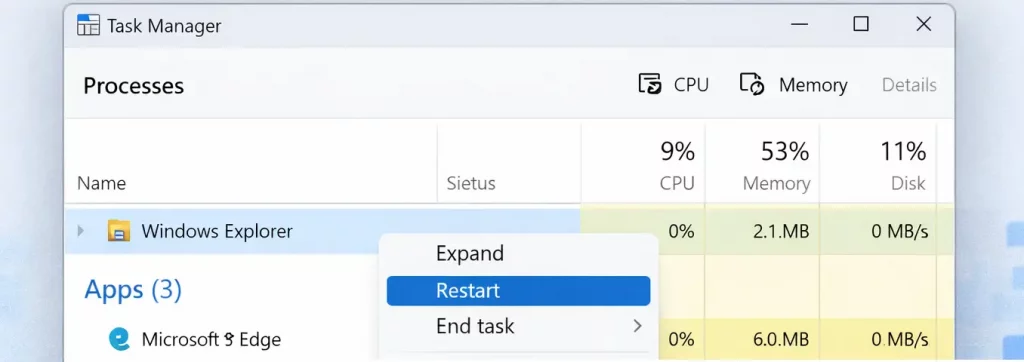
You’ll see the taskbar flicker briefly. That’s expected.
After this, open a few folders and test responsiveness. Many people are surprised that this alone noticeably improves Explorer behavior.
If Explorer feels normal now, you can stop here.
If it still lags, continue to the next step.
Step 2: Reduce thumbnail and preview workload
Explorer thumbnails look helpful, but they are one of the most common causes of lag—especially in folders with many files.
When thumbnails are enabled, Explorer tries to read file contents just to show previews. This slows things down, particularly for videos, PDFs, or folders synced from cloud services. I’ve seen this slow Explorer even on new machines.
Before changing anything, close open Explorer windows so the setting applies cleanly.
What to do:
- Open File Explorer
- Click the three dots → Options
- Go to the View tab
- Enable Always show icons, never thumbnails
- Click OK
Once applied, Explorer stops generating previews and focuses on basic file loading instead.
Folders should open faster and feel more consistent. You’ll still be able to open files normally—only the previews are removed.
This change is fully reversible and safe.
Step 3: Switch Explorer away from Quick Access
Quick Access feels convenient, but it constantly tracks recent files and frequently used folders. On some systems, that tracking causes delays every time Explorer opens.
When Explorer opens to This PC instead, it loads a static view first and behaves more predictably.
What to do:
- Open File Explorer Options
- Change Open File Explorer to from Quick Access to This PC
- Click OK
After this, Explorer may feel more responsive, especially on first launch.
This doesn’t remove Quick Access. It simply stops Explorer from depending on it.
Step 4: Clear File Explorer history
Explorer keeps a history of recent files and folders. Over time, some of those locations may no longer exist or respond slowly, especially if they were on external drives or old network paths.
Clearing this history removes stale references that Explorer may still be checking.
What to do:
- Open File Explorer Options
- Under Privacy, click Clear
- Click OK
Nothing important is deleted. This only affects Explorer’s internal history.
After clearing it, restart Explorer again and test.
Step 5: Address right-click menu lag
If Explorer feels fine until you right-click, this step is critical.
Right-click menus load extensions from other apps—antivirus tools, archive programs, cloud storage apps, and media players. If one extension is slow, Explorer waits before showing the menu.
What to do:
- Temporarily close non-essential background apps
- Restart File Explorer again
- Test right-click behavior
Guardrail: avoid uninstalling random apps just to “see if it helps.” That often breaks useful features and makes troubleshooting harder.
In real-world cases, a single outdated app can make Explorer feel broken even though everything else works.
Step 6: Check Windows system files (only if needed)
If Explorer lag started after a Windows update and nothing else helped, system files may need a repair check.
Before running this, close open apps and let Windows sit idle for a minute or two.
What to do:
- Right-click Start
- Choose Terminal (Admin)
- Run the following command:
sfc /scannow
This command tells Windows to verify and repair its own files. It does not change your data.
Let it finish fully.
If it reports repairs were made, restart your PC and test Explorer again.
If it reports no issues, then corruption isn’t the cause and you can stop here.
What to avoid
Avoid registry “speed tweaks” for Explorer. They may seem harmless, but they often disable safeguards that Windows relies on and can cause instability after updates.
Avoid third-party optimizer or cleaner tools. These tools frequently remove things Explorer depends on and can create new performance issues that are harder to undo.
Pro tip
If Explorer is slow only inside folders with mixed content, you can optimize the folder type.
What to do:
- Right-click the folder
- Open Properties
- Go to Customize
- Set Optimize this folder for: General items
This stops Explorer from guessing file types and reduces background processing.
Practical closure
Explorer lag in Windows 11 is annoying, but it’s usually behavioral, not permanent damage. Fixes like these work best when applied calmly and tested one at a time.
If Explorer improves even a little after a step, that’s a good sign. Small improvements tend to stack.
Take it slow. Windows usually responds better that way.
