
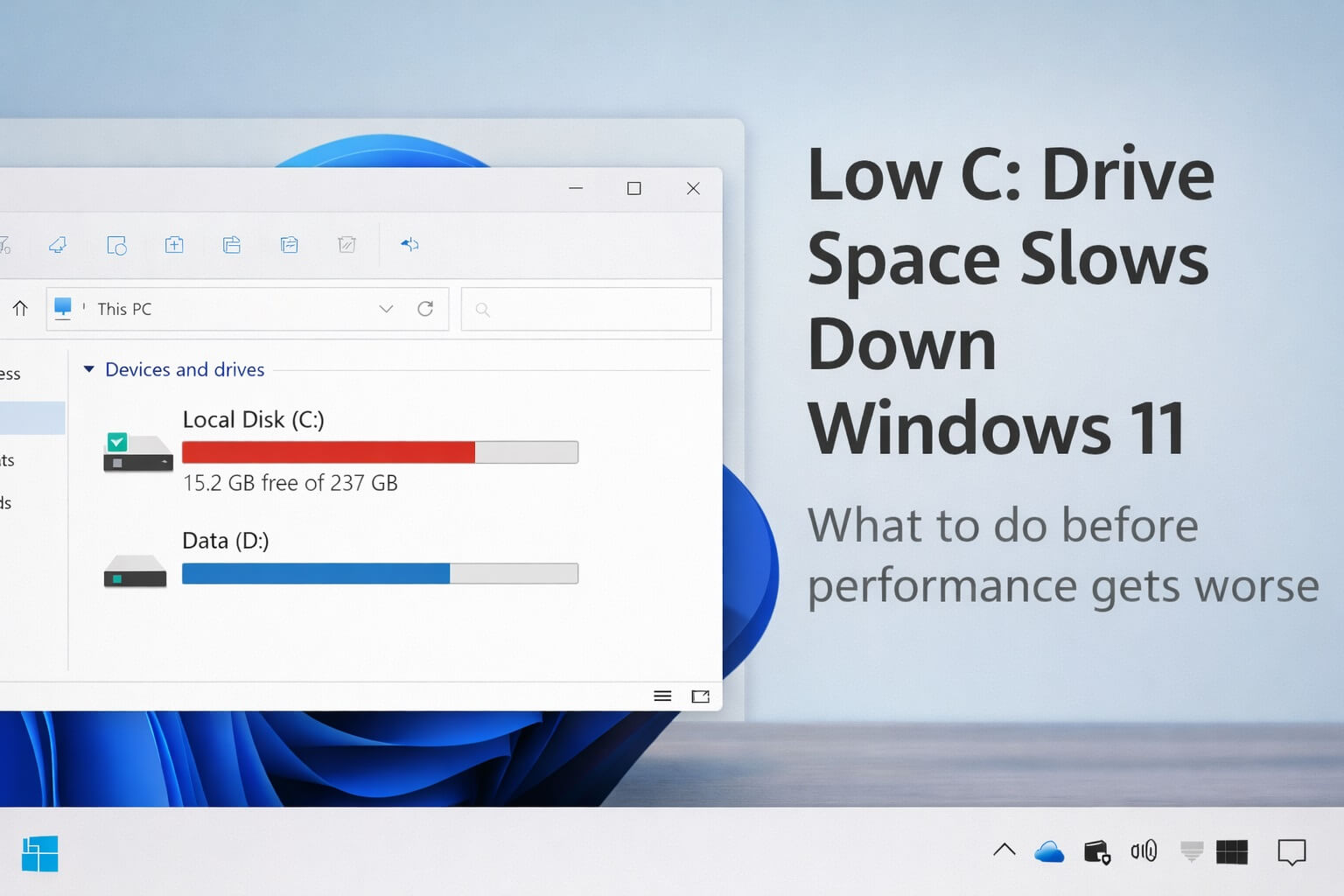
If your Windows 11 PC feels sluggish, unresponsive, or oddly inconsistent, low free space on the C: drive is often the reason. This catches a lot of people off guard because nothing looks “broken.” Windows still boots. Apps still open.
But everything feels heavier than it should.
This isn’t your imagination, and it usually doesn’t mean your PC is old or failing.
What “low space” actually means in Windows 11
Windows needs free space on the C: drive to function properly. That space is used constantly for temporary files, updates, memory overflow, indexing, and background maintenance tasks.
When that space runs low, Windows has nowhere to work.
In real-world use, systems often start feeling noticeably slower once the C: drive drops below roughly 15–20% free space. Below that point, Windows starts competing with itself for room, even during simple tasks.
This affects:
- App loading speed
- File operations
- Updates
- Overall responsiveness
And yes, this applies even if you have plenty of space on other drives. If Windows is installed on C: , that is the one that matters.
Why low C: drive space causes slowdowns
At a high level, here’s what’s happening:
- Windows relies on free disk space as a working buffer
- When RAM fills up, Windows temporarily uses disk space to keep things running
- Updates and background tasks need room to unpack and clean up after themselves
When that space disappears, Windows can’t work efficiently. Instead of handling tasks quietly in the background, it starts waiting.
You experience that waiting as lag, pauses, or brief freezes. There’s usually no warning message. Windows just struggles silently, which is why this problem often gets misdiagnosed.
Step 1: Check how much free space you actually have
Before fixing anything, confirm the problem.
- Open File Explorer
- Click This PC
- Look at the C: drive
If the free space bar is mostly red or nearly full, that’s a real performance bottleneck.
What to expect:
You’re not testing hardware health here. You’re simply checking whether Windows has enough room to operate normally.
Reassurance:
Seeing a nearly full C: drive can be stressful, but this is one of the safer Windows problems to fix.
Step 2: Free up space safely (quick wins)
Start with the safest options first.
Turn on Storage Sense
Storage Sense automatically removes temporary files and leftover system cleanup data.
- Go to Settings → System → Storage
- Turn Storage Sense on
Why this helps:
It cleans up files Windows creates on its own without touching your documents, photos, or apps.
Empty the Recycle Bin
Files in the Recycle Bin still count against your disk space.
- Right-click the Recycle Bin
- Choose Empty Recycle Bin
This step sounds basic, but in practice it often frees several gigabytes.
What to expect:
You may see free space increase immediately. After a restart, Windows often feels smoother once it has room again.
Step 3: Remove apps you no longer use
Unused apps take up space and often run background services or update checks.
- Go to Settings → Apps → Installed apps
- Sort by Size
- Uninstall apps you no longer need
This is especially helpful on systems that have accumulated software over time.
What to avoid (important guardrails)
Avoid third-party “cleaner” or “optimizer” tools.
They frequently remove files Windows expects to exist and can cause new problems that are harder to trace than low disk space.
Avoid manually deleting folders inside C:\Windows or Program Files.
These folders are tightly integrated into the system. Removing the wrong file can lead to crashes or update failures days later, not immediately.
If you’re unsure whether something is safe to remove, pause and verify first.
Pro tip
If your C: drive stays low even after basic cleanup, the space is usually being taken by large system files, old updates, or backups that aren’t obvious at first glance. That’s where a deeper, guided cleanup makes sense — not aggressive deleting.
👉 Deep dive: How to Safely Free Up Disk Space on Windows 11
Did it fix the issue
If you free up space, restart, and Windows still feels slow,
then disk space is probably not the main bottleneck, and you should check startup apps, disk activity, or memory usage next.
Practical next step
Low free space on the C: drive is one of the most common and least risky performance issues in Windows 11. Give Windows room to work first. If space is still tight after the safe steps above, follow a focused cleanup guide that walks through deeper options carefully like one I have here.
Once Windows has breathing room again, performance problems often improve without touching anything else.
