
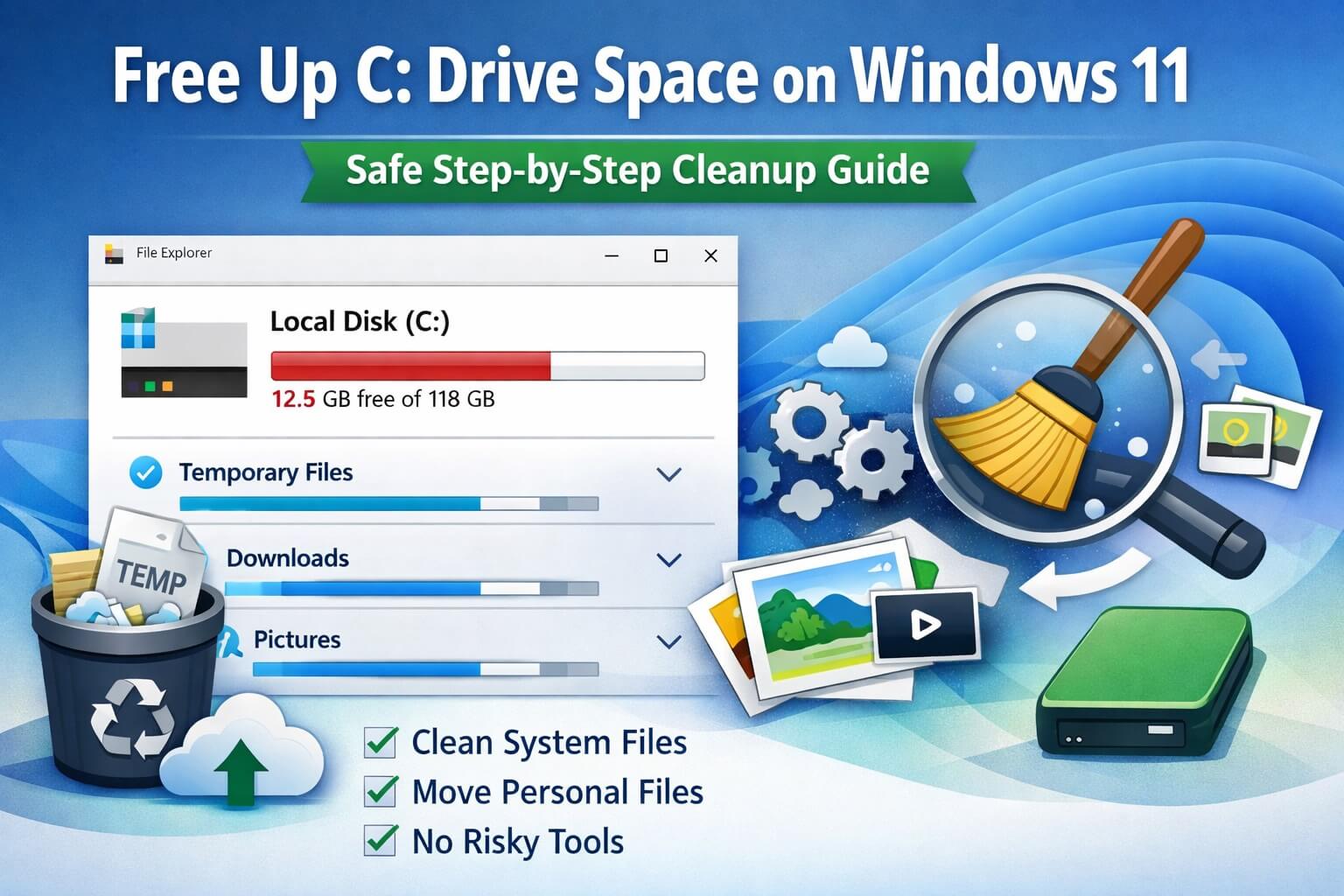
If your Windows 11 PC feels slow and storage warnings keep popping up, the C: drive is usually the reason. This is the main drive Windows depends on for updates, virtual memory, and background tasks. When it gets tight on space, performance suffers—even if everything else looks fine.
The good news: you don’t need risky tools or advanced knowledge to clean it up. You just need to know what’s safe to remove, what to leave alone, and what actually frees meaningful space.
This guide walks you through that, step by step.
What’s Actually Eating Up Space on the C: Drive
Most people assume the problem is “too many files.” In reality, space slowly disappears because of:
- Old Windows update files
- Temporary system and app cache
- Forgotten downloads
- Apps you no longer use
- Hidden leftovers from upgrades
On many everyday systems, the biggest space hogs aren’t personal files at all. They’re system leftovers that quietly build up in the background. That’s common—and fixable.
Step 1: Use Windows Storage View First (Don’t Skip This)
Before deleting anything, let Windows show you where the space is actually going.
- Open Settings
- Go to System → Storage
- Click Local Disk (C:)
Why this matters:
This prevents guessing. You’ll see categories like Apps, Temporary files, Downloads, Documents, Pictures, and Videos.
What to expect:
The numbers can look alarming at first. That doesn’t mean anything is broken.
Nothing changes yet. You’re just reviewing.
Reassurance: Simply opening this screen cannot damage your PC.
Step 2: Clean Temporary Files (Safe and Reversible)
Now click Temporary files.
Windows scans and lists items such as:
- Windows Update Cleanup
- Temporary files
- Thumbnails
- Recycle Bin
- Delivery Optimization files
What to do:
Check everything except “Downloads.”
Then click Remove files.
Why this step helps:
These files are no longer needed by Windows. They tend to accumulate quietly, especially after updates.
What to expect:
This may free anywhere from a few gigabytes to well over 20 GB. On systems that haven’t been cleaned in a while, this step alone can make a noticeable difference.
Guardrail #1:
Do not include Downloads here unless you have already reviewed that folder. This is one of the most common ways people delete something they meant to keep.
Step 3: Review the Downloads Folder Manually
The Downloads folder is one of the biggest silent space hogs on Windows PCs.
- Open File Explorer
- Go to Downloads
- Sort by Size
Why this works:
Installers, ZIP files, and old PDFs pile up quickly and are rarely needed again after installation.
What to expect:
Removing just a handful of large installers can free several gigabytes almost instantly.
If you’re unsure about a file, don’t delete it yet. Move it to another drive or an external USB instead. That keeps this step completely reversible.
Step 4: Uninstall Apps You Don’t Use (The Right Way)
Go to Settings → Apps → Installed apps.
Sort the list by Size.
Why this matters:
Some apps look small but take up a surprising amount of space, especially older games, trial software, or utilities you no longer use.
What to do:
Uninstall apps you don’t recognize or haven’t used in months.
Restart after removing large programs.
What to expect:
Space frees up immediately. Many people also notice slightly faster startup afterward.
Guardrail #2:
Avoid uninstalling hardware-related software (graphics control panels, audio utilities, touchpad tools) unless you’re sure what they do. Removing those can break features even though Windows itself still runs.
Step 5: Use Storage Sense (Optional but Helpful)
Storage Sense helps prevent the C: drive from filling back up.
- Go to Settings → System → Storage
- Turn Storage Sense ON
- Click it to review what it cleans and how often
Why this helps:
It handles routine cleanup automatically so you don’t have to remember.
Pro tip:
Monthly cleanup is usually enough. Daily cleanup is unnecessary and can remove things before you’ve had a chance to review them.
Step 6: Clear Old Windows Update Files (Advanced but Safe)
If your PC has gone through multiple updates or version upgrades, Windows may still be holding old update data.
This is already included under Temporary files → Windows Update Cleanup, but it’s worth confirming you ran it.
What to expect:
This step can sit seemingly idle for several minutes. That’s normal. Let it finish.
If it looks stuck, give it time. Stopping it midway causes more problems than waiting.
Step 7: Manage Personal Files (Pictures, Videos, Documents)
If you’ve completed all cleanup steps and the C: drive is still tight on space, personal files are usually the next factor.
Photos and videos add up faster than people realize. A single phone backup or short video collection can consume tens of gigabytes.
- Go back to Settings → System → Storage
- Click Pictures, Videos, or Documents
- Sort files by Size in File Explorer
Why this step matters:
At this stage, Windows itself is already clean. Freeing more space means moving files, not deleting system data.
Safe ways to free space without losing files:
- Move photos and videos to an external hard drive or USB
- Upload older files to cloud storage (OneDrive, Google Drive, etc.)
- Move large folders to a secondary internal drive, if your PC has one
If you’re unsure, start by moving—not deleting. Once you confirm everything opens correctly from the new location, you can remove the originals from C:.
Reassurance: Moving personal files does not affect Windows or installed programs.
One Common Panic Moment (And Why It’s Okay)
During cleanup—especially update cleanup—the system may appear frozen. Mouse still moves, but nothing seems to happen.
This is normal. Windows is working in the background. It often finishes suddenly after a long pause.
Let it run.
If / Then Troubleshooting
- If you still have less than 10–15 GB free after cleanup and moving personal files,
then the drive itself is likely too small for modern Windows usage. Long term, upgrading to a larger SSD will be more effective than repeated cleanup.
What to Avoid (Important)
- Avoid registry cleaners and “PC optimizer” tools
- Avoid command-line scripts you don’t understand
- Avoid deleting folders directly from
C:\Windows
These approaches often remove the wrong files and create stability issues that are harder to fix than low disk space.
Practical Wrap-Up
You don’t need a perfectly clean drive. Windows 11 just needs breathing room. Once system clutter is gone, the real decision becomes where your personal files live.
If warnings are gone and performance feels normal again, you’re done.
If space keeps disappearing quickly, focus on storage strategy—not more aggressive cleanup.
