
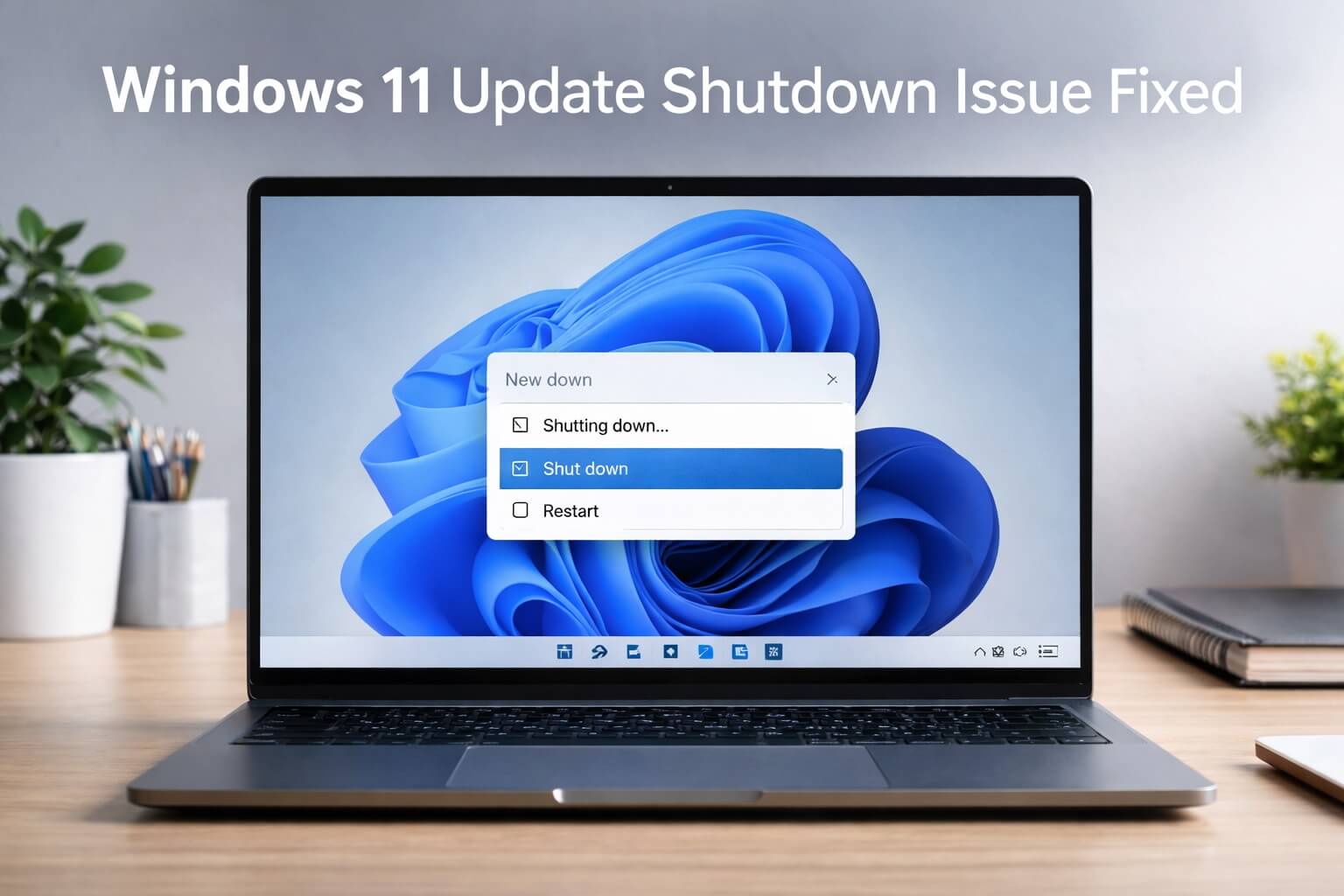
If your Windows 11 PC restarted instead of shutting down after installing KB5073455, Microsoft has now released an official fix: KB5077797.
This update corrects the shutdown and hibernate behavior without requiring workarounds like disabling Fast Startup. If you were waiting for a proper fix, this is it.
Read my previous blog post to learn more about the restart issue and workaround.
What the problem was (quick recap)
After KB5073455, some Windows 11 systems would:
- Restart instead of shutting down
- Ignore hibernate
- Power back on immediately after shutdown
It felt like Windows wasn’t listening. In reality, it was misinterpreting the shutdown command.
I’ve seen this kind of issue before when an update touches boot or security logic. It usually takes one follow-up patch to clean it up.
Why KB5077797 fixes it
Microsoft confirmed that KB5073455 introduced a shutdown logic bug related to startup handling on certain systems.
KB5077797 corrects that logic so Windows can properly tell the difference between:
- Shut down
- Restart
- Hibernate
No settings changes are required once this update is installed.
Official fix: Install KB5077797
This is the recommended solution from Microsoft.
Why we’re doing this
This update replaces the faulty behavior introduced by KB5073455. Once installed, Windows no longer needs workarounds.
How to install KB5077797
- Click Start
- Go to Settings
- Select Windows Update
- Click Check for updates
- Install KB5077797 if it appears
- Restart your PC when prompted
That’s it.
If updates were paused earlier, make sure they’re resumed so Windows can see this patch.
Now, verify the installation by checking Update History.
What to expect after installation
- Shut down works normally
- Hibernate works again
- No unexpected restarts
- No performance changes
The first shutdown after the update may take slightly longer. That’s normal while Windows finalizes system files.
If you previously disabled Fast Startup
If you turned off Fast Startup as a temporary workaround:
- You can leave it off (safe)
- Or turn it back on after installing KB5077797
To re-enable it:
- Open Control Panel
- Go to Power Options
- Choose What the power buttons do
- Enable Turn on fast startup
- Save changes
No rush. Test shutdown first.
Clear troubleshooting line
Pro Tip: if KB5077797 is installed and your PC still restarts instead of shutting down, then fully restart once more and test again before changing any settings.
That extra restart matters more than people expect.
What to avoid
- Do not uninstall random updates now
Once KB5077797 is installed, removing updates can reintroduce the bug. - Do not use third-party shutdown or “fix” tools
This issue is resolved at the OS level. Extra tools add risk without benefit.
Reassurance for beginners
You didn’t cause this, and you didn’t miss anything. This was an update bug, and Microsoft has now fixed it properly.
If your system shuts down normally after KB5077797, you’re done. No tweaks. No cleanup. Just use your PC and move on.
Update-related restart problems can change over time as fixes are released. For ongoing context, see our Windows 11 update notes and known issues hub, which tracks recent changes and resolutions.
Frequently Asked Questions
What is KB5077797?
KB5077797 is an official Microsoft update for Windows 11 that fixes the shutdown and restart issue caused by the earlier update KB5073455.
Do I still need to disable Fast Startup if KB5077797 is installed?
No. Once KB5077797 is installed, Fast Startup does not need to be disabled. It was only a temporary workaround before the official fix was released.
How do I know if KB5077797 is installed on my PC?
Go to Settings → Windows Update → Update history and look for KB5077797 in the list of installed updates.
What should I do if my PC still restarts instead of shutting down after installing KB5077797?
Restart your PC once more, then test shutdown again. If the issue continues, pause updates temporarily and wait for any additional Microsoft patches.
Is it safe to uninstall KB5073455 after installing KB5077797?
No. If KB5077797 is installed, you should not uninstall KB5073455. Removing updates can reintroduce the shutdown problem.
Does KB5077797 affect performance or files?
No. This update only fixes shutdown and hibernate behavior. It does not change performance, apps, or personal files.
Can I turn Fast Startup back on after installing KB5077797?
Yes. After installing KB5077797 and confirming shutdown works normally, you can safely re-enable Fast Startup if you want.
Is this a hardware problem?
No. This issue is caused by a Windows update bug. It is not related to your PC hardware or power supply.
Should I use third-party tools to fix shutdown issues?
No. Microsoft does not recommend using third-party “optimizer” or shutdown tools for update-related issues. They can cause more problems.
Do I need technical experience to apply this fix?
No. Installing KB5077797 through Windows Update is safe and beginner-friendly. You’re not expected to change advanced system settings.
