
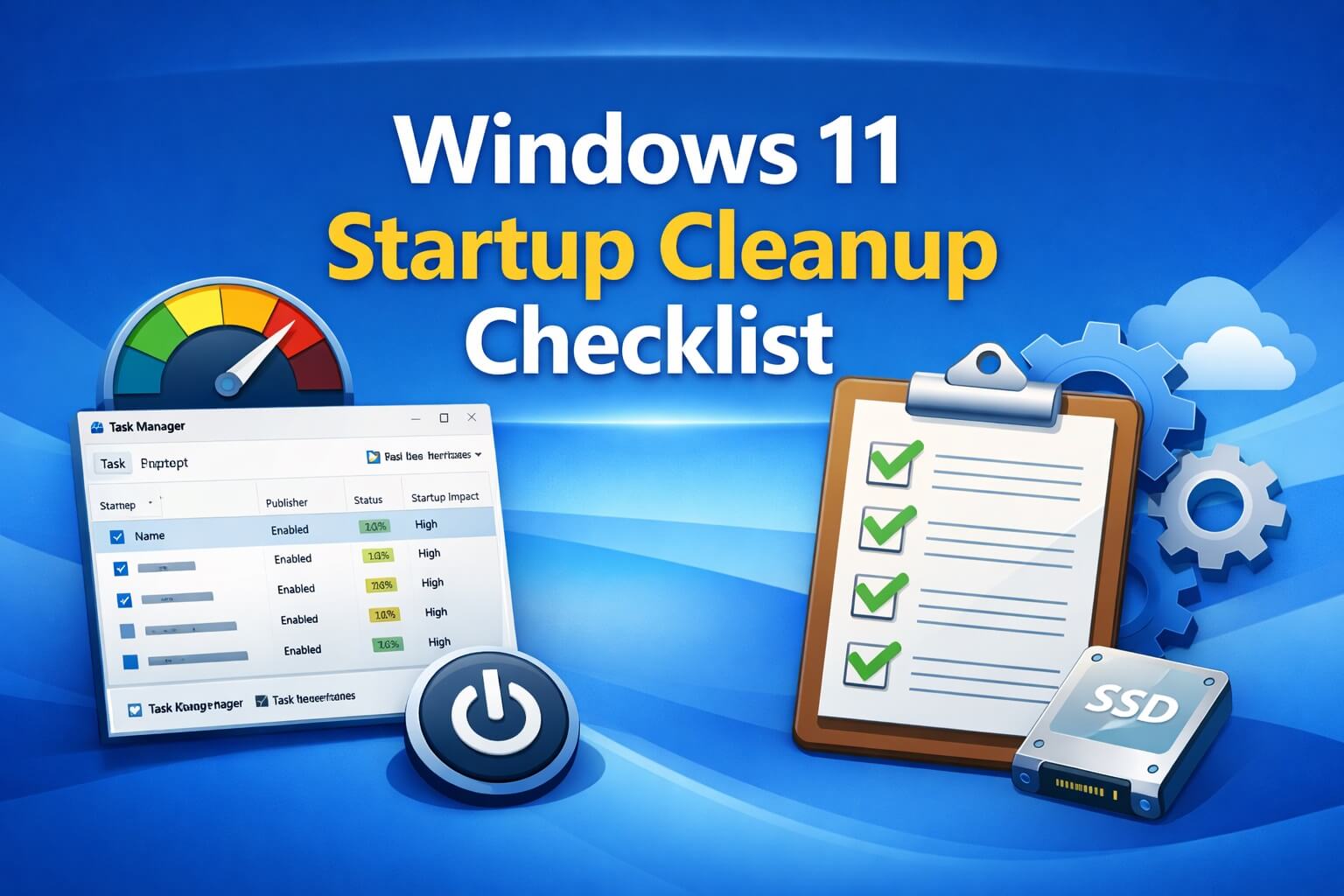
Here is the checklist that is mentioned in my previous blog post.
Read full article here: How to disable Unnecessary Windows 11 Startup Apps
If your PC feels slow before you even use it:
- ☐ Assume startup apps might be part of the problem, not the only one
- ☐ Ignore “speed booster” advice — it usually makes things worse
Before disabling anything:
- ☐ Open Task Manager (Ctrl + Shift + Esc)
- ☐ Go to Startup apps tab only
- ☐ Sort by Startup impact
Safe process to follow:
- ☐ Disable one or two apps at a time
- ☐ Restart and test
- ☐ If something breaks, re-enable it
Apps you usually can disable:
- ☐ Game launchers (Steam, Epic, EA, etc.)
- ☐ Chat apps you don’t need at boot (Discord, Teams personal)
- ☐ Auto updaters that aren’t critical
- ☐ Manufacturer utilities you never use
Apps to leave alone:
- ☐ Anything labeled driver, security, or hardware
- ☐ Audio services (Realtek, Dolby, Nahimic)
- ☐ Touchpad, keyboard, fingerprint tools
- ☐ Antivirus components
Reality check (important):
- ☐ If Disk usage stays high after login, startup apps aren’t the real issue
- ☐ HDD systems will still feel slow no matter what you disable
- ☐ Watch CPU/Disk in Task Manager after startup
