
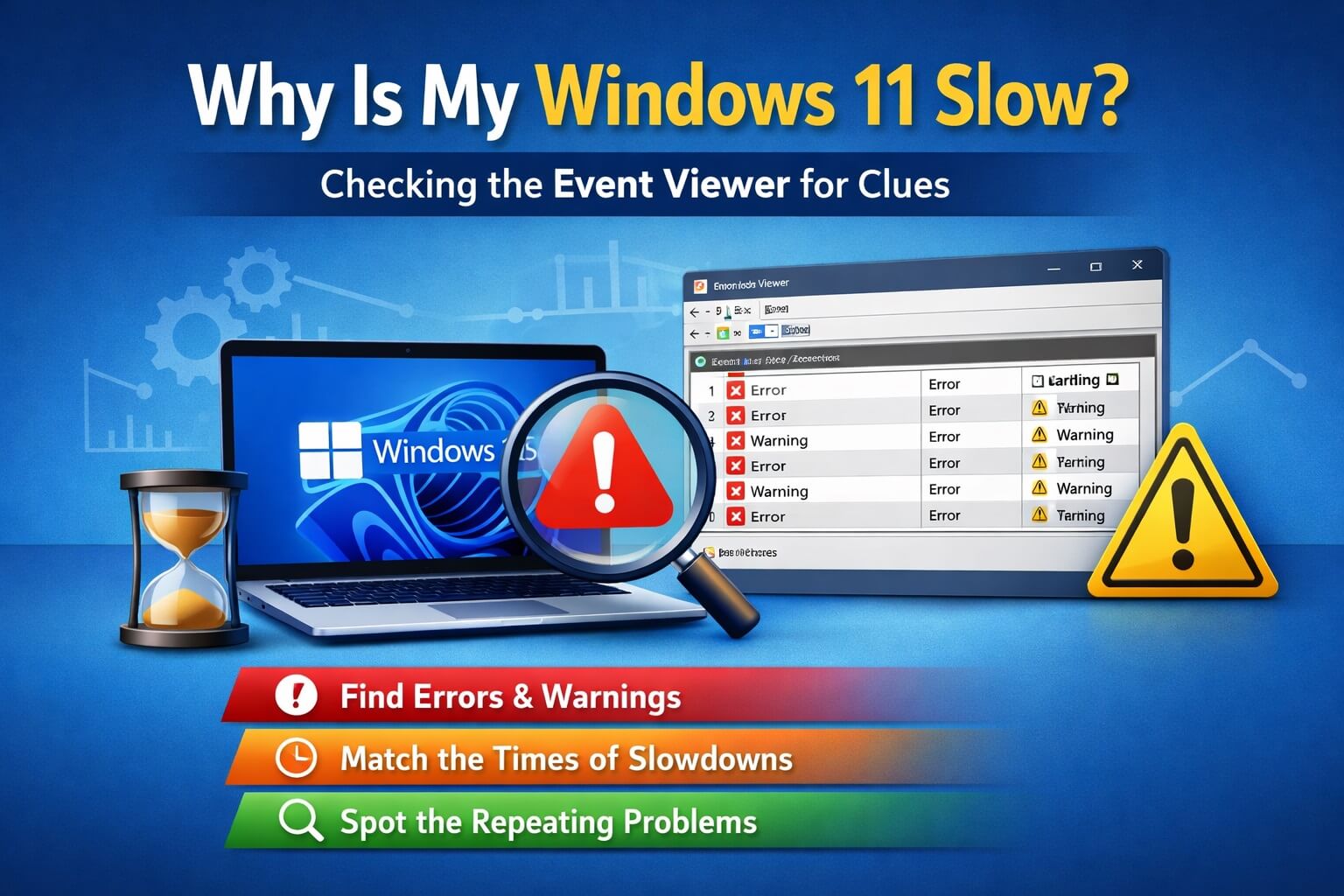
Look, if your Windows 11 PC feels like it’s wading through mud, you’re not imagining it. Most of the time, people (and even AI) will tell you to “just reinstall Windows” or buy a new laptop. That’s frustrating especially when you don’t even know what’s wrong yet.
This guide is here to slow things down and make sense of what’s actually happening. By the end, you’ll know whether your slowdown is a quick software issue or a sign of something more serious without hours of guessing or mis-troubleshooting.
This guide won’t magically fix everything, but it will help you identify the root cause using Windows’ own records. Think of it as checking the security camera footage to see who actually tripped the alarm before you start blaming your hardware. In Windows, that “camera” is called the Event Viewer. Let’s dive in.
1. What This Guide Uses (Nothing Extra Installed)
We’re sticking to tools already on your PC; no downloads, no risky commands, no registry edits.
- Event Viewer: Your PC’s diary. It logs every crash, driver hiccup, and background process struggle.
- Your own observations: We’ll match the times your PC felt slow to the timestamps in the logs.
That’s it. No third-party cleanup tools. Nothing tricky.
2. Quick Prep (Safety & Accuracy First)
Before opening anything:
- Save your work: Just in case things are unstable.
- Keep slow apps open: We want a realistic snapshot of your system while it’s struggling.
- Admin rights: Make sure you’re logged into an administrator account.
- Expect a little lag: Event Viewer can take a few seconds to load, especially on a slow PC.
Important: We are observing only. Don’t delete logs or follow “error code fixes” until the diagnosis is complete.
3. Step-by-Step Diagnostic Flow
Step A: Open Event Viewer
- Where to go: Right-click the Start button → Event Viewer.
- What to look for: A window with a tree on the left and a list of events in the center.
- What it means: This is the master timeline of your computer’s life. Every little stutter is recorded here.
- What NOT to do: Don’t worry about the number of errors; they’re normal. Don’t click random items yet.
Step B: Go to the Right Log
- Where to click: Expand Windows Logs → click System.
- What to look for: Red Error icons and Yellow Warning icons, especially ones from today or your last slowdown.
- What it means: Errors = something failed; Warnings = something took too long.
- Next step: If the list looks clean → skip to Step 4. Otherwise → keep going.
Step C: Match Errors to Slowness
Click one red error in the center panel.
- Look for: Date & Time, Source.
- The Big Question: “Was I experiencing lag at this exact time?”
- Common culprits:
- Disk: Storage is falling behind.
- Display/Driver: Graphics or screen issues.
- Service Control Manager: Windows struggling to start a background task.
- Kernel-Power: Unexpected shutdowns or restarts.
- Safety: Don’t Google error codes yet, they often produce generic or misleading advice. If timing matches your lag, you’ve likely found the cause.
Step D: Check Application Errors (Optional)
- Where to go: Windows Logs → Application.
- What to look for: Repeated errors from the same app (Chrome, Zoom, games).
- What it means: Sometimes one app “choking” can slow the entire PC.
Step E: Look for Patterns
- Why: One error is often harmless. Repeated errors are what matter.
- Look for: The same Source name appearing multiple times.
- What it tells you:
- Happens every boot → startup issue
- Happens after waking from sleep → power/driver issue
4. Common Red Flags (What Actually Matters)
- Pay attention to:
- Disk errors showing up daily
- Driver errors tied to freezing
- Kernel-Power errors if your PC shuts down unexpectedly
- Usually harmless:
- Single warnings after a Windows update
- Errors from apps you haven’t used in weeks
- Logs from a month ago
Tip: Red doesn’t always mean broken, repetition is what counts.
5. Quick Recovery Actions (Safe & Temporary)
These are simple ways to confirm the issue, not fix serious problems:
- Normal Restart: Restart your PC once. If performance improves, the issue may be temporary system congestion.
- Log Out and Back In: Clears “stuck” app sessions without touching settings.
- 5-Minute Idle: Leave the PC alone. If warnings stop, Windows was likely finishing background maintenance.
6. Observation Log (Simple Summary)
| Tool Used | What You Saw | Likely Cause | Next Logical Step |
| Event Viewer (System) | Disk warnings | Storage slowdown | Check drive health |
| Event Viewer (System) | Driver errors | Hardware or driver issue | Update or roll back driver |
| Event Viewer (Application) | App crashes | Software conflict | Isolate or reinstall app |
| No patterns | No clear cause | Temporary load | Monitor, don’t fix |
7. What This Diagnosis Tells You (Next Step)
After reviewing the logs, you should be able to determine:
- Software or Hardware? (App issue vs disk/driver error)
- One-off or recurring? (Temporary lag vs persistent problem)
- Next Step: Search for fixes specific to the problem you identified, rather than guessing with “Why is my PC slow?”
- Checkout the solutions below
👉 Deep dive: [ Fix Common Windows 11 Event Viewer Errors ]
This ensures any follow-up action is precise and saves hours of trial-and-error.
8. Key Takeaways
- Everything leaves a trail: your PC usually logs its own slowdowns.
- Patterns matter more than one-time errors.
- Context is everything: an error only counts if it matches your lag.
- Stay calm: most Event Viewer entries look scarier than they are.
- Observe first, fix later: this approach saves time and reduces mistakes.
